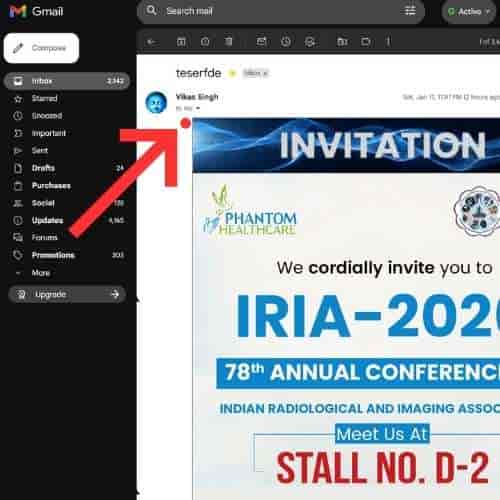
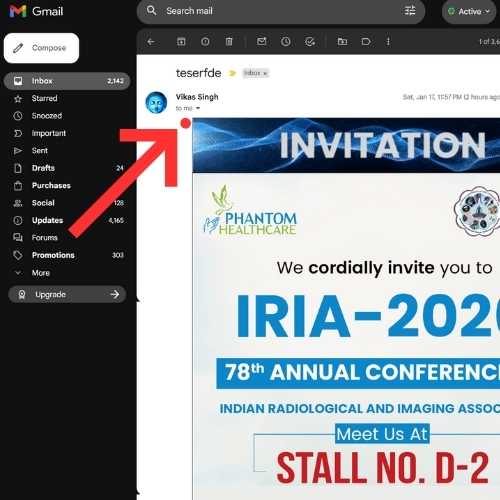
IRIA 2026 Email Template Tutorial: Article, PDF & Video Guide
Complete guide for sending IRIA 2026 invitations - includes step-by-step article, video tutorial & downloadable PDF. BCC technique, daily limits & best practices.
IRIA 2026 Email Template Tutorial: Article, PDF & Video Guide
Welcome Team Phantom! 🎯 This comprehensive guide will teach you exactly how to send our beautifully designed IRIA 2026 invitation emails to clients. Follow each step carefully to ensure professional delivery and maximum impact.
📚 This tutorial includes:
- 📝 Complete Article - Step-by-step written guide with screenshots
- 🎬 Video Tutorial - Watch the entire process in action (2:42)
- 📄 Downloadable PDF - Offline reference guide
⚠️ Important: Browser Compatibility Notice
This HTML formatting preservation method works BEST on:
- ✅ Google Chrome on Desktop (Windows/Mac) - RECOMMENDED
- ✅ Microsoft Edge on Desktop
- ✅ Firefox on Desktop
DO NOT use with:
- ❌ Microsoft Outlook Desktop App
- ❌ Apple Mail App
- ❌ Any MS Office/Mac Office email applications
- ❌ Mobile email apps (Gmail app, Outlook app, etc.)
Why? Desktop browsers preserve the HTML formatting perfectly when using this method. Email applications and mobile apps often strip or modify the HTML code, breaking the responsive design.
For best results: Always compose and send these emails using Gmail in Chrome browser on Desktop.
🎯 Event Details at a Glance
Before we dive into the tutorial, here's what we're promoting:
| Detail | Information | |--------|-------------| | Event | 78th Annual Conference of IRIA (Indian Radiological and Imaging Association) | | Dates | 29th January to 1st February 2026 | | Venue | HITEX Exhibition Center, Hyderabad | | Our Stall | D-2 |
"IRIA 2026 is the nation's premier gathering for radiologists and medical imaging technologists. Let's make Stall D-2 the most visited stall!" - Team Phantom Healthcare
📧 Step-by-Step Email Sending Tutorial
Step 1: Open the Email Template
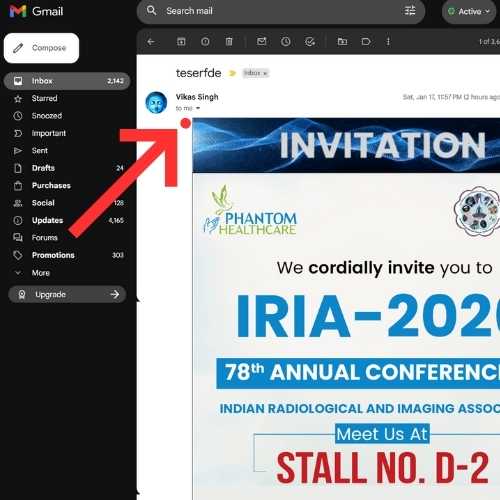
You will receive the email template from your manager or team lead. Open that email in your inbox (Gmail or Google Workspace).
💡 Alternative: You can also copy the template directly from the embedded email preview available in this blog (scroll down to "Copy Email Template Directly" section). Use Google Chrome on Desktop for best results when pasting the content.
What you'll see:
- A professionally designed invitation with Phantom Healthcare branding
- The IRIA 2026 event details
- Our stall number (D-2)
- Contact information and social media links
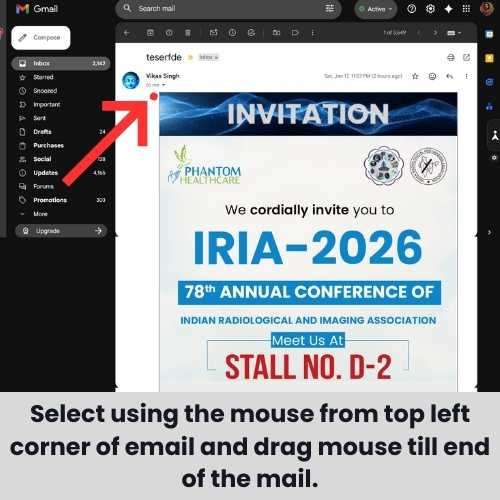
Step 2: Select and Copy the Email Content
⚠️ CRITICAL: Follow this EXACTLY
-
DO NOT use Ctrl+A (Select All) - This will copy headers, subject line, and reply buttons which will break the formatting
-
Use your mouse to manually select:
- Start from the TOP of the email content (just below the subject line area)
- Drag down to the BOTTOM of the email content (just before the "Unsubscribe" text or footer)
- Your selection should include ONLY the email body content
-
Copy the selected content:
- Press Ctrl+C (Windows) or Cmd+C (Mac)
- Or Right-click → Copy

Step 3: Compose a New Email
- Click Compose (Gmail) or New Email (other clients)
- IMPORTANT: Remove your email signature first!
- Click on the signature area at the bottom
- Delete it completely
- Our email template already has all contact information

Step 4: Paste the Email Template
- Click inside the email body area
- Press Ctrl+V (Windows) or Cmd+V (Mac) to paste
- The entire responsive email should appear with all formatting intact
Why this works: Our template is designed using Beefree and copied from preview mode, which preserves responsiveness even in Gmail/Outlook compose windows.
Step 5: Add Recipients Using BCC
⚠️ VERY IMPORTANT: Always use BCC!
Why BCC?
- Protects client privacy - recipients cannot see each other's email addresses
- Looks professional - each recipient thinks they received a personal email
- Required for GDPR/privacy compliance
- Prevents "Reply All" disasters
How to add BCC recipients:
- Click on BCC field (next to "To" field)
- Add recipient email addresses separated by commas
- Leave the "To" field empty OR add your own email address
- Recommended: Put your own email in "To" field to track delivery
Step 6: Add Subject Line
Use a clear, professional subject line:
Recommended Subject Lines:
Invitation: Meet Phantom Healthcare at IRIA 2026 - Stall D-2Join us at IRIA 2026 | Phantom Healthcare - Stall D-2, HITEX HyderabadSpecial Invitation: 78th IRIA Conference - 29 Jan to 1 Feb 2026
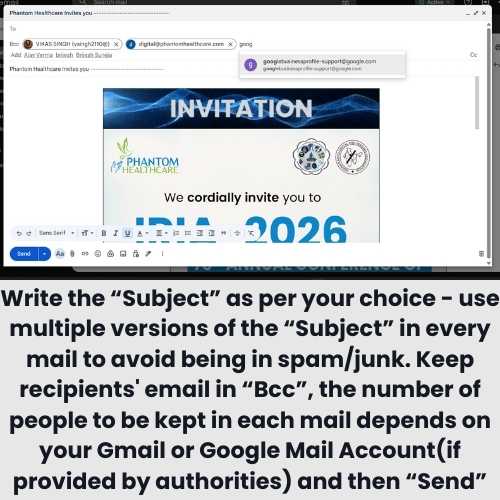
Step 7: Send in Batches
⚠️ CRITICAL: Follow batch limits to avoid spam filters!
| Email Account Type | Max per Batch | Wait Between Batches | Daily Limit | |--------------------|---------------|---------------------|-------------| | Free Gmail (@gmail.com) | 10-15 | 15-20 minutes | 100-150/day | | Google Workspace (@phantomhealthcare.com) | 15-20 | 15 minutes | 2000/day |
Batch Sending Process:
- Batch 1: Add 10-15 BCC recipients → Send
- Wait 15-20 minutes (do other work)
- Batch 2: Add next 10-15 BCC recipients → Send
- Repeat until all contacts are covered
- Track: Keep a list of who you've sent to
🚨 Important Precautions
Do's ✅
- ✅ Always use BCC for multiple recipients
- ✅ Remove your signature before pasting
- ✅ Send in small batches (10-15 at a time)
- ✅ Wait 15-20 minutes between batches
- ✅ Keep track of sent emails in a spreadsheet
- ✅ Personalize subject line if sending individually
- ✅ Test by sending to yourself first
- ✅ Check spam folder if test email doesn't arrive
Don'ts ❌
- ❌ Never use Ctrl+A to select - breaks formatting
- ❌ Never add all recipients in "To" or "CC" field
- ❌ Never send more than 15 emails in one batch
- ❌ Never exceed daily sending limits
- ❌ Don't send same email to same person twice
- ❌ Don't forward the email - always paste fresh
🗓️ Emoji Tip: Avoid Date Confusion!
⚠️ Calendar Emoji Warning:
If you're customizing the template with emojis, be careful with calendar emojis:
| Emoji | Name | What it Shows | Use? | |-------|------|---------------|------| | 📅 | Calendar | July 17 (World Emoji Day) | ❌ Confusing! | | 📆 | Tear-off Calendar | 31 | ❌ Confusing! | | 🗓️ | Spiral Calendar | Generic lines | ✅ Safe to use! |
Why it matters: Recipients may see "July 17" or "31" and think those are the event dates instead of 29 Jan - 1 Feb 2026!
Safe alternative: Use 🗓️ (Spiral Calendar) which shows generic calendar lines, or simply use text without date emojis.
📱 Why Our Template Works Everywhere
We designed this email using Beefree and use a professional HTML Content Transfer Protocol from preview mode. This ensures:
- ✅ Responsive design - looks great on desktop AND mobile
- ✅ Consistent rendering - works in Gmail, Outlook, Apple Mail
- ✅ Images display correctly - properly linked and sized
- ✅ CTA buttons work - all links functional
- ✅ No code stripping - Gmail doesn't remove our styling
Traditional email marketing tools (Mailchimp, Constant Contact) are great for mass emails, but for personal sending by sales executives, this copy-paste method gives better deliverability and personal touch.
📋 Copy Email Template Directly
If you haven't received the email template from your manager, you can copy it directly from the embedded preview below.
🖥️ Desktop Chrome Browser Required
This embedded template is designed to work only in Google Chrome on Desktop. The copy buttons will copy the entire email template with formatting preserved.
Steps:
- Click the "📋 Copy Email Template" button below
- Open Gmail in Chrome browser
- Click Compose → Remove signature → Paste (Ctrl+V)
- Add BCC recipients and subject line
- Send!
Desktop Only Feature
The embedded email template preview and copy functionality is only available on Desktop devices.
Please open this page in Google Chrome on a Desktop/Laptop to view and copy the email template.
⚠️ Copy Button Not Working?
The copy button may not work in all browsers. If it doesn't copy properly:
- Manual Selection: Use your mouse to select the email content inside the preview above, then Ctrl+C to copy
- Or request the template email directly from your manager
- The copy button works best in Chrome Desktop
📊 Daily Sending Limits - Quick Reference
Free Gmail Account (@gmail.com)
| Limit Type | Amount | |------------|--------| | Emails per day | 100-150 | | Recipients per email (BCC) | 100 | | Emails per minute | ~20 | | Recommended per batch | 10-15 | | Cooldown between batches | 15-20 min |
Google Workspace Account (@phantomhealthcare.com)
| Limit Type | Amount | |------------|--------| | Emails per day | 2,000 | | Recipients per email (BCC) | 2,000 | | External recipients per day | 3,000 | | Recommended per batch | 15-20 | | Cooldown between batches | 15 min |
Pro Tip: Start with lower numbers on new accounts. Google monitors sending patterns and may flag sudden increases as suspicious activity.
🎯 Target Audience for Invitations
Send invitations to:
- ✅ Active clients (hospitals, clinics, diagnostic centers)
- ✅ Prospective leads in your pipeline
- ✅ Hospital/clinic managers and owners
- ✅ Radiologists and imaging technologists
- ✅ Medical equipment procurement officers
- ✅ Healthcare administrators
- ✅ Doctors you've worked with
Priority List:
- Decision makers who can visit HITEX Hyderabad
- Existing customers for relationship building
- Warm leads who showed interest in our products
- Industry contacts and networking connections
� Important: Coordinate with Your Team
⚠️ Please divide the email list among team members to ensure multiple emails don't get sent to the same person. Discuss with your manager or team lead before starting your email campaign to avoid duplicate sends and maintain professionalism.
🆘 Troubleshooting
Email looks broken after pasting?
- Make sure you selected ONLY the email body content
- Don't use Ctrl+A - use mouse selection
- Try pasting in a new compose window
- Check if signature was removed before pasting
Email going to spam?
- Send in smaller batches (5-10)
- Increase wait time between batches (30 min)
- Add a personal line at the top like "Dear [Name],"
- Avoid spam trigger words in subject line
Images not showing?
- This is normal for first view in some email clients
- Recipients need to click "Display images" once
- All images are properly hosted and will load
Formatting lost?
- Re-copy from the original template email
- Make sure you're pasting in HTML mode (not plain text)
- Gmail sometimes auto-converts - try again
📞 Need Help?
If you face any issues:
- Template access: Contact your manager or copy from the embedded template above in this blog
- Event queries: Contact marketing team
- Technical issues: Contact Digital Marketing - digital@phantomhealthcare.com
✅ Quick Checklist Before Sending
Use this checklist for every batch:
- [ ] Template copied correctly (mouse selection, not Ctrl+A)
- [ ] Signature removed from compose window
- [ ] Template pasted and looks correct
- [ ] Subject line added
- [ ] Recipients added in BCC field only
- [ ] Batch size: 10-15 recipients max
- [ ] Previous batch was 15+ minutes ago
- [ ] Haven't exceeded daily limit
- [ ] Sent test email to yourself first
Let's make IRIA 2026 a huge success! See you at Stall D-2, HITEX Hyderabad! 🚀
— Team Phantom Healthcare🎬 Complete Video Tutorial
Watch this complete video tutorial (2:42) to see the entire process in action:
Video Tutorial: How to Copy and Send the IRIA 2026 Email Template (Duration: 2:42)
📄 Downloadable PDF Guide
For offline reference, download our comprehensive PDF guide with all the steps and screenshots:
Tags
About the Author

Vikas Singh "विमुक्त"
Editor of CogniSocial Research
Software Professional, Social Psychologist, Digital Marketer, Environmental & Civil Rights Activist. Researching how digital platforms shape human cognition and behavior, while advocating for social justice, environmental protection, and civil liberties.
Learn More About Author
Social Linksconnect with me